
First Time Setup Instructions
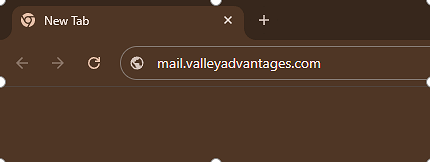
1. Open a web browser and go to mail.valleyadvantages.com
2. Enter your email address
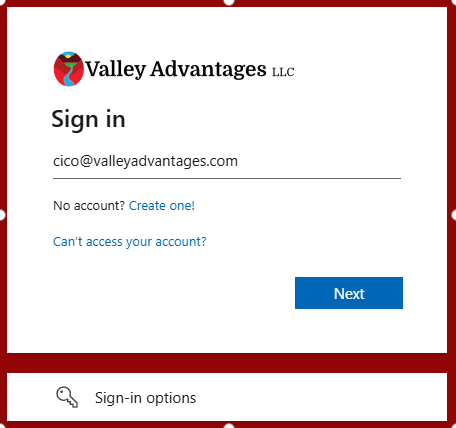
3. Click "Next"

4. Enter your temporary password

5. Click "Sign in"

6. Click "Next"

7. Download the Microsoft Authenticator app on your phone

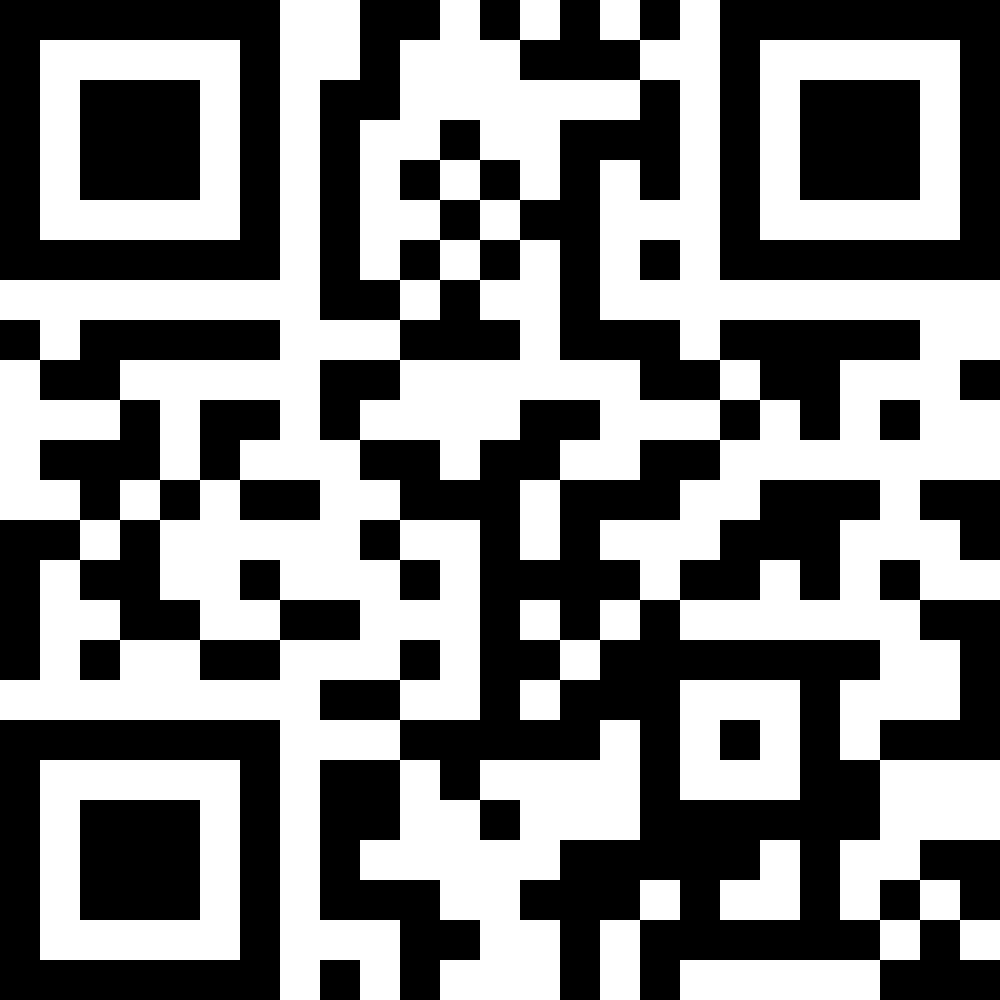
8. IMPORTANT: Scan this QR code to get the correct Authenticator app
9. Once the app is downloaded, click "Open"

10. Once the app is open, follow the steps to add a work or school account

11. If prompted, sharing additional data is optional. Click Continue

12. Click the plus icon in the top right
This screenshot shows accounts already set up in the app, clicking the plus icon might not be necessary.

13. Select Work or School Account

14. Select Scan QR code

15. You may need to allow the app to access your camera.

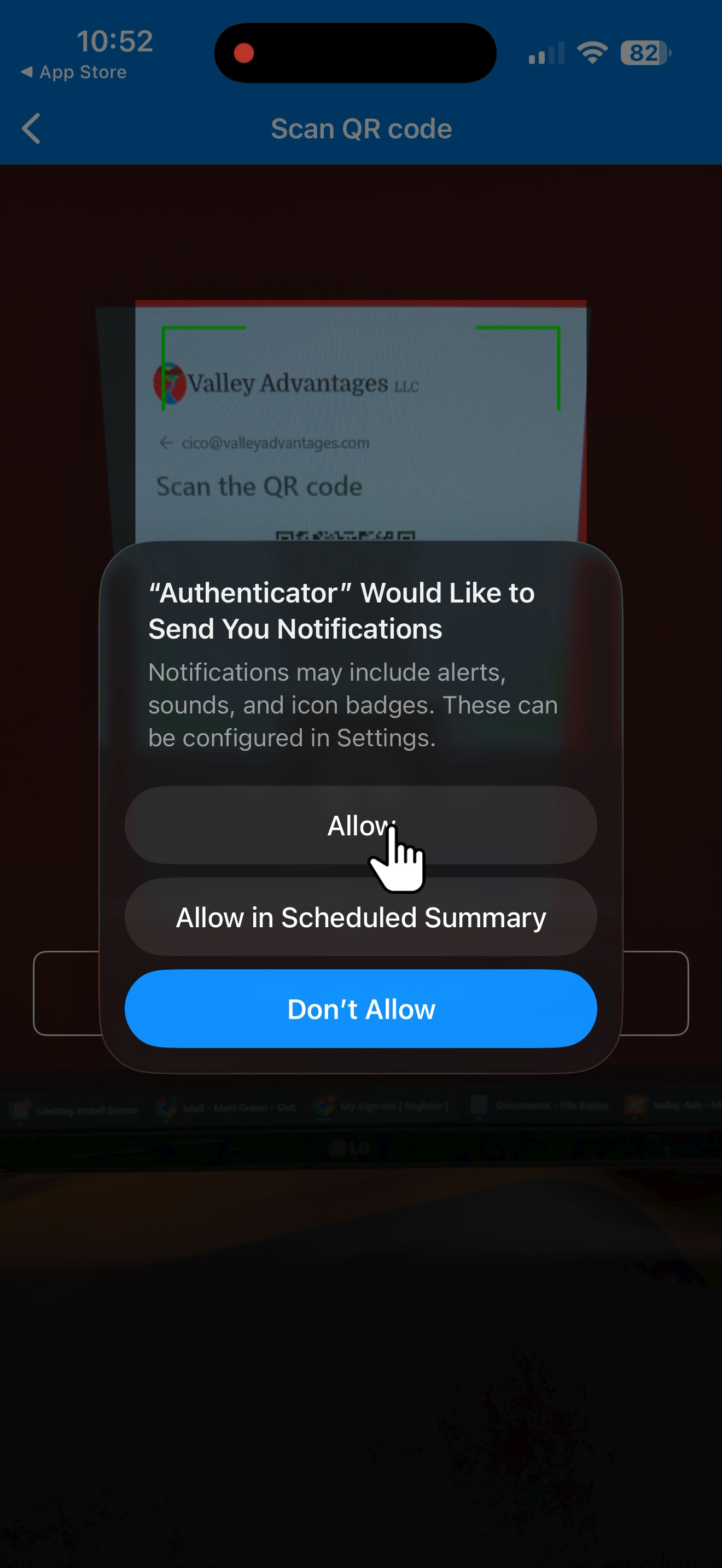
16. Scan the QR code with the Authenticator app

17. Allow notifications from the Authenticator app
You won't receive any notifications other than sign in requests.
18. When you see this screen, you're good to go!

19. Once the app has scanned the code, press Next
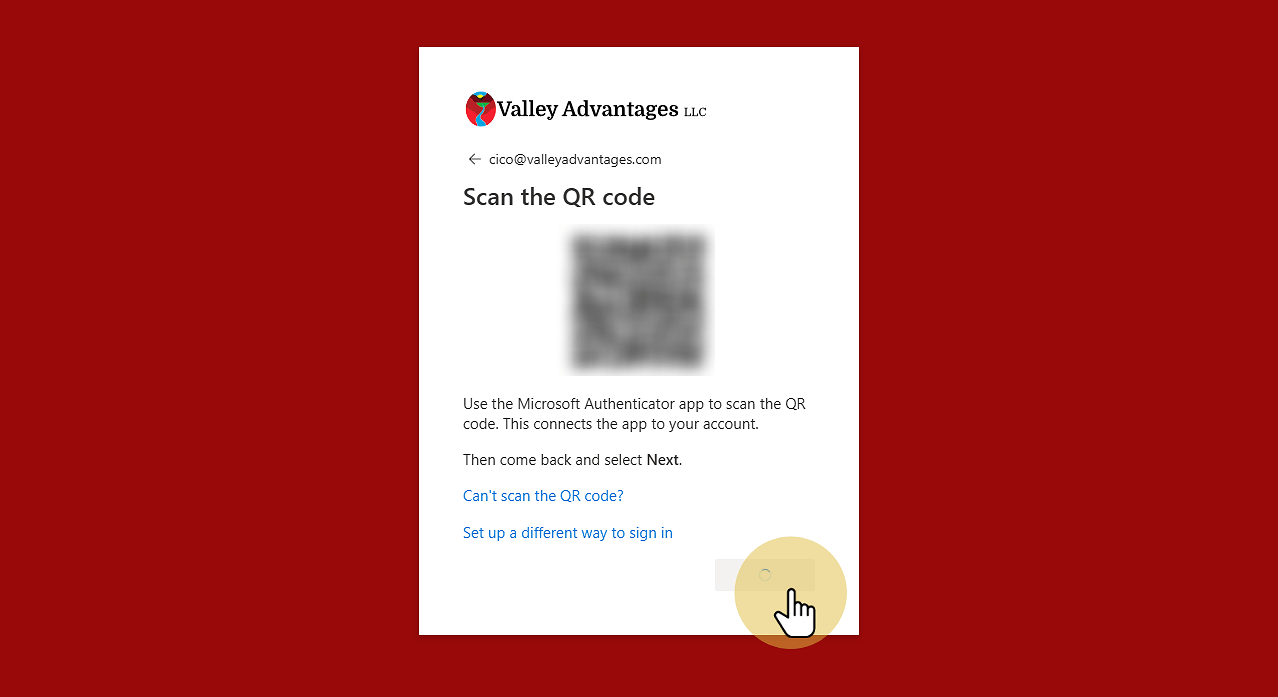
20. Enter the number shown on screen into the Authenticator app

21. Enter the number shown on screen and click yes

22. When you see this screen, you're good to go!
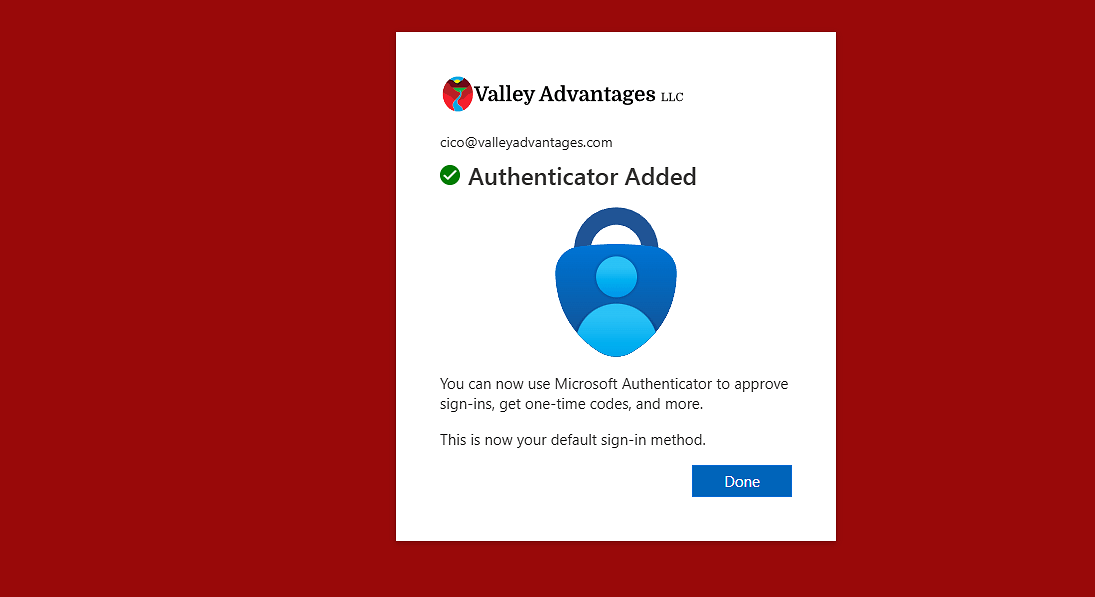
23. Click "Done"

24. Enter your current password and a new secure password
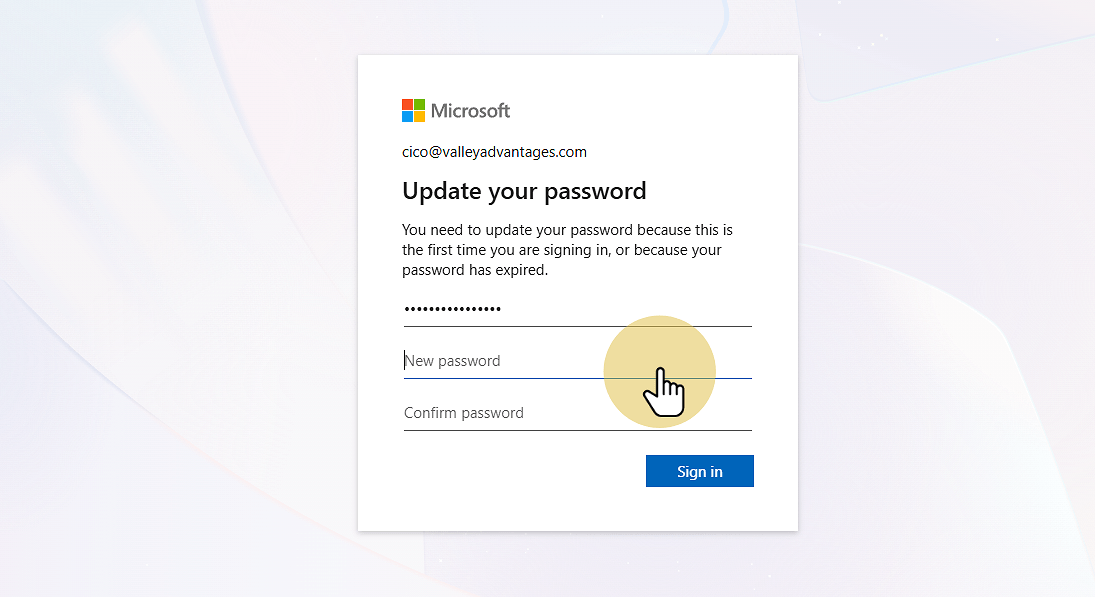
25. Click "Sign in"

26. Your inbox will load...
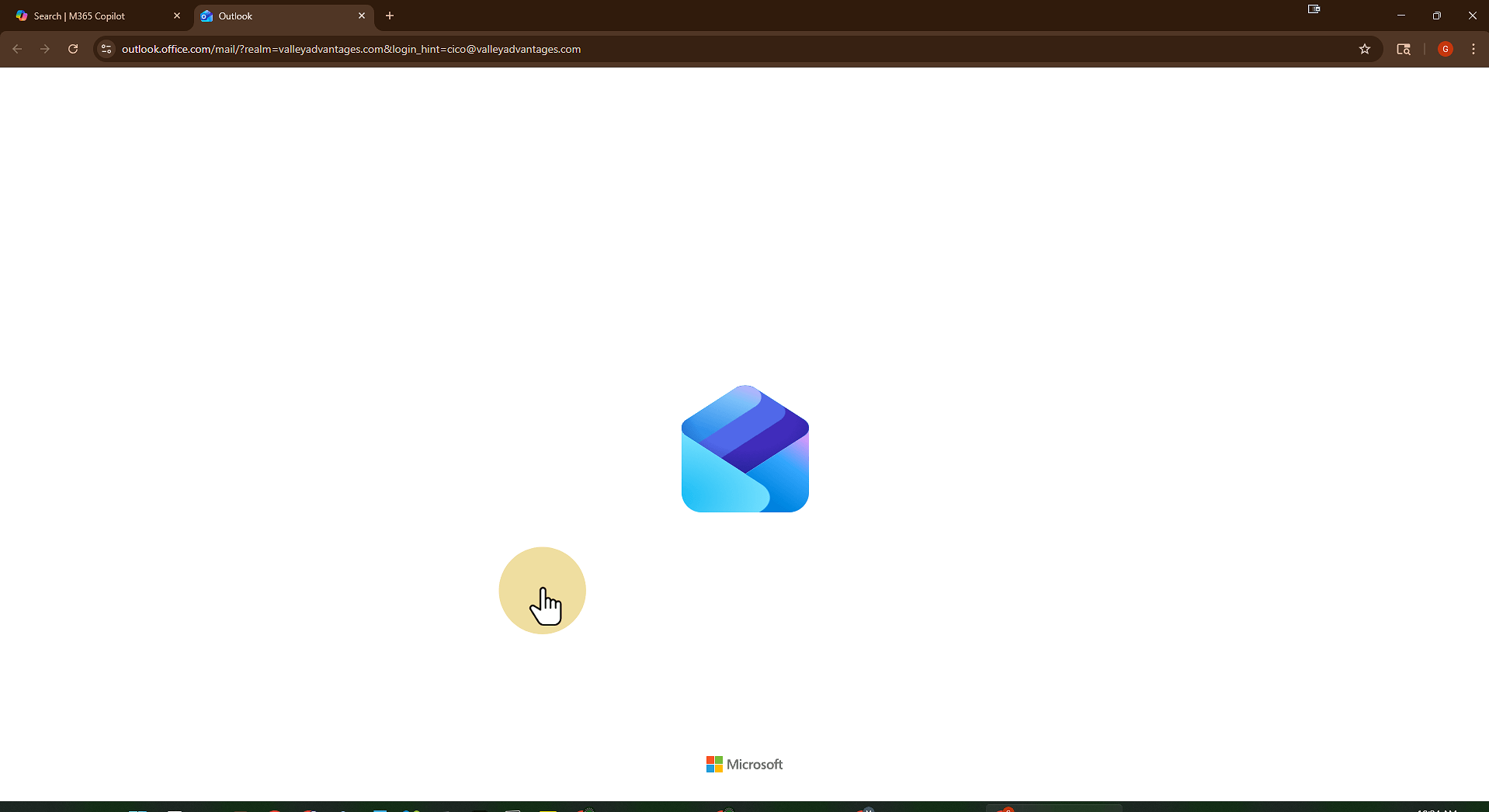
27. Welcome to your inbox!

28. Scan this QR code to download the Outlook app on your phone to access your email

No comments to display
No comments to display