# First Time Setup Instructions

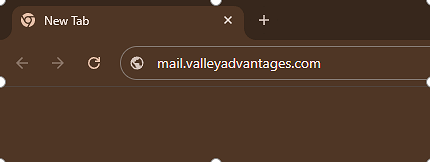
**1.**  <span class="stepTitleText">Open a web browser and go to [mail.valleyadvantages.com](https://mail.valleyadvantages.com)</span>

![Open a web browser and go to mail.valleyadvantages.com](https://kb.calicosystems.net/uploads/images/gallery/2026-02/embedded-image-4givq80q.png)

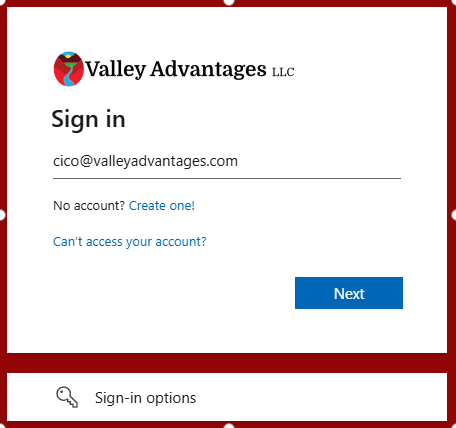
<div class="stepCard" id="bkmrk--1"></div>**2.**  <span class="stepTitleText">Enter your email address</span>

![Enter your email address](https://kb.calicosystems.net/uploads/images/gallery/2026-02/embedded-image-inteoths.png)

<div class="stepCard" id="bkmrk--3"></div>**3.**  <span class="stepTitleText">Click "Next"</span>

![Click "Next"](https://kb.calicosystems.net/uploads/images/gallery/2026-02/embedded-image-zhj0dj9d.png)

<div class="stepCard" id="bkmrk--5"></div>**4.**  <span class="stepTitleText">Enter your temporary password</span>

![Enter your temporary password](https://kb.calicosystems.net/uploads/images/gallery/2026-02/embedded-image-e4lknwbz.png)

<div class="stepCard" id="bkmrk--7"></div>**5.**  <span class="stepTitleText">Click "Sign in"</span>

![Click "Sign in"](https://kb.calicosystems.net/uploads/images/gallery/2026-02/embedded-image-50crvtgx.png)

<div class="stepCard" id="bkmrk--9"></div>**6.**  <span class="stepTitleText">Click "Next"</span>

![Click "Next"](https://kb.calicosystems.net/uploads/images/gallery/2026-02/embedded-image-tpzq8me5.png)

<div class="stepCard" id="bkmrk--11"></div>**7.**  <span class="stepTitleText">Download the Microsoft Authenticator app on your phone</span>

![Download the Microsoft Authenticator app on your phone](https://kb.calicosystems.net/uploads/images/gallery/2026-02/embedded-image-jxrbwno7.png)

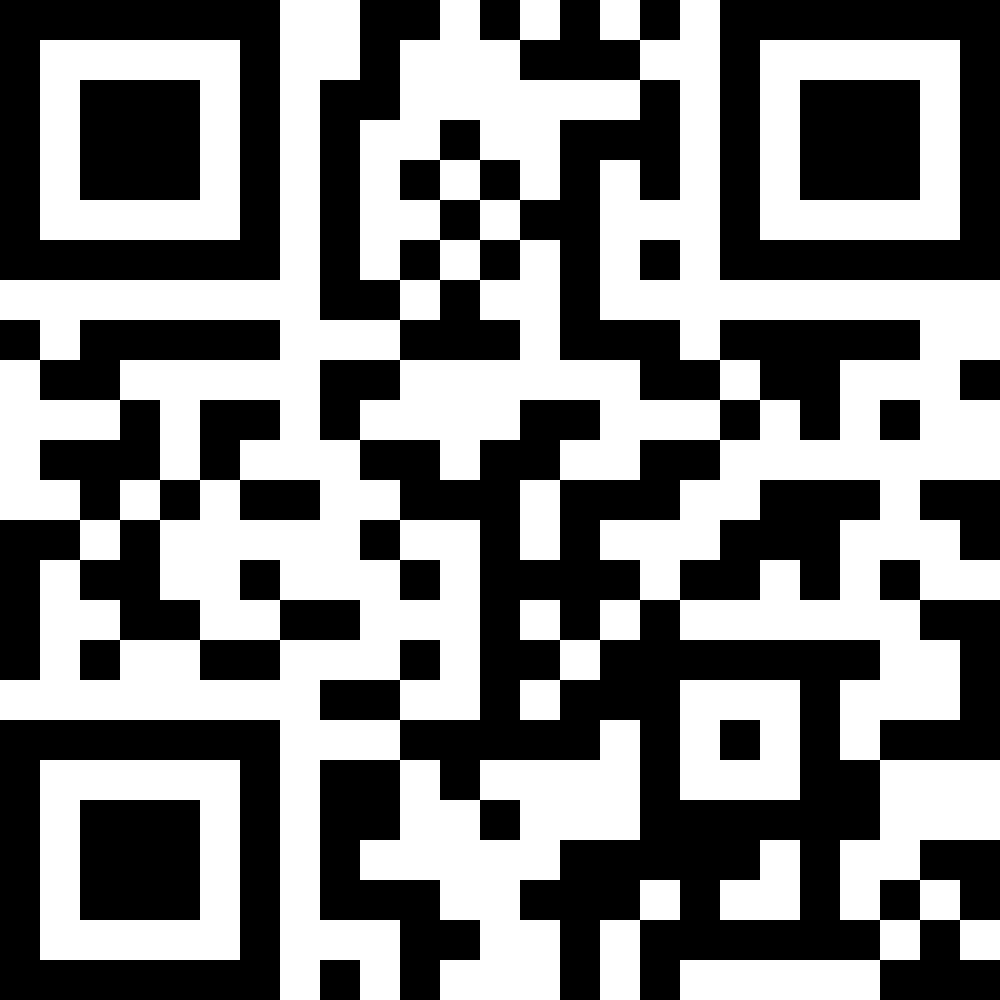
<div class="stepCard" id="bkmrk--13"></div>**8.**  <span class="stepTitleText">IMPORTANT: Scan this QR code to get the correct Authenticator app</span>

![IMPORTANT: Scan this QR code to get the correct Authenticator app](https://kb.calicosystems.net/uploads/images/gallery/2026-02/embedded-image-q5oxfc8p.png)

<div class="stepCard" id="bkmrk--15"></div>**9.**  <span class="stepTitleText">Once the app is downloaded, click "Open"</span>

![Once the app is downloaded, click "Open"](https://kb.calicosystems.net/uploads/images/gallery/2026-02/embedded-image-upbujteq.png)

<div class="stepCard" id="bkmrk--17"></div>**10.**  <span class="stepTitleText">Once the app is open, follow the steps to add a work or school account</span>

![Once the app is open, follow the steps to add a work or school account](https://kb.calicosystems.net/uploads/images/gallery/2026-02/embedded-image-z6x3dqtp.png)

<div class="stepCard" id="bkmrk--19"></div>**11.**  <span class="stepTitleText">If prompted, sharing additional data is optional. Click Continue</span>

![If prompted, sharing additional data is optional. Click Continue](https://kb.calicosystems.net/uploads/images/gallery/2026-02/embedded-image-zssucon6.png)

<div class="stepCard" id="bkmrk--21"></div>**12.**  <span class="stepTitleText">Click the plus icon in the top right</span>

This screenshot shows accounts already set up in the app, clicking the plus icon might not be necessary.

<div class="stepCard" id="bkmrk--22"><div class="stepDescription quillClasses">  
</div>  
</div>![Click the plus icon in the top right](https://kb.calicosystems.net/uploads/images/gallery/2026-02/embedded-image-e9exidwv.png)

<div class="stepCard" id="bkmrk--24"></div>**13.**  <span class="stepTitleText">Select Work or School Account</span>

![Select Work or School Account](https://kb.calicosystems.net/uploads/images/gallery/2026-02/embedded-image-bwqnpalm.png)

<div class="stepCard" id="bkmrk--26"></div>**14.**  <span class="stepTitleText">Select Scan QR code</span>

![Select Scan QR code](https://kb.calicosystems.net/uploads/images/gallery/2026-02/embedded-image-zlna1at5.png)

<div class="stepCard" id="bkmrk--28"></div>**15.**  <span class="stepTitleText">You may need to allow the app to access your camera.</span>

![You may need to allow the app to access your camera.](https://kb.calicosystems.net/uploads/images/gallery/2026-02/embedded-image-g3ruojb9.png)

<div class="stepCard" id="bkmrk--30"></div>**16.**  <span class="stepTitleText">Scan the QR code with the Authenticator app</span>

![Scan the QR code with the Authenticator app](https://kb.calicosystems.net/uploads/images/gallery/2026-02/embedded-image-ukyhmzwu.png)

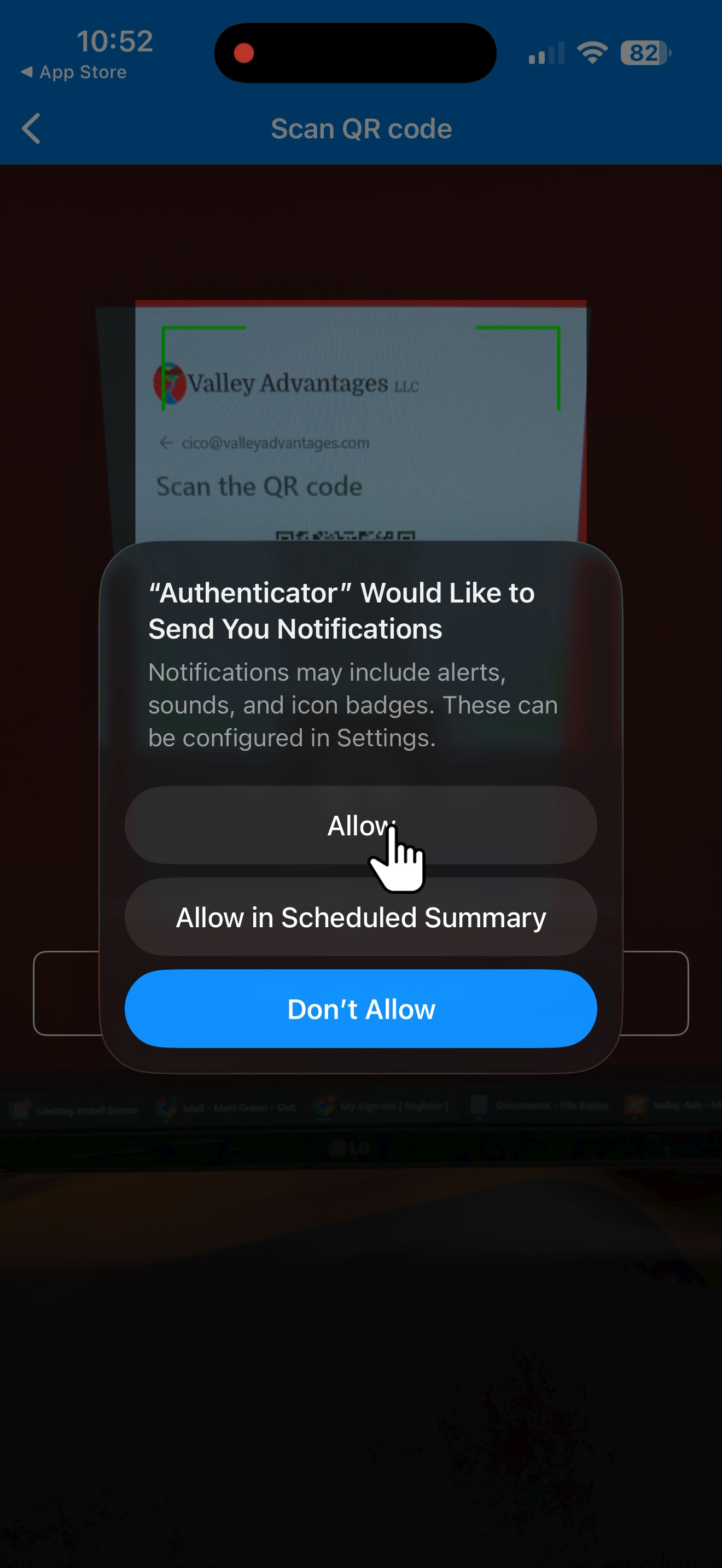
<div class="stepCard" id="bkmrk--32"></div>**17.**  <span class="stepTitleText">Allow notifications from the Authenticator app</span>

You won't receive any notifications other than sign in requests.
<div class="stepCard" id="bkmrk--33"><div class="stepDescription quillClasses">  
</div>  
</div>![Allow notifications from the Authenticator app](https://kb.calicosystems.net/uploads/images/gallery/2026-02/embedded-image-9dowie33.png)

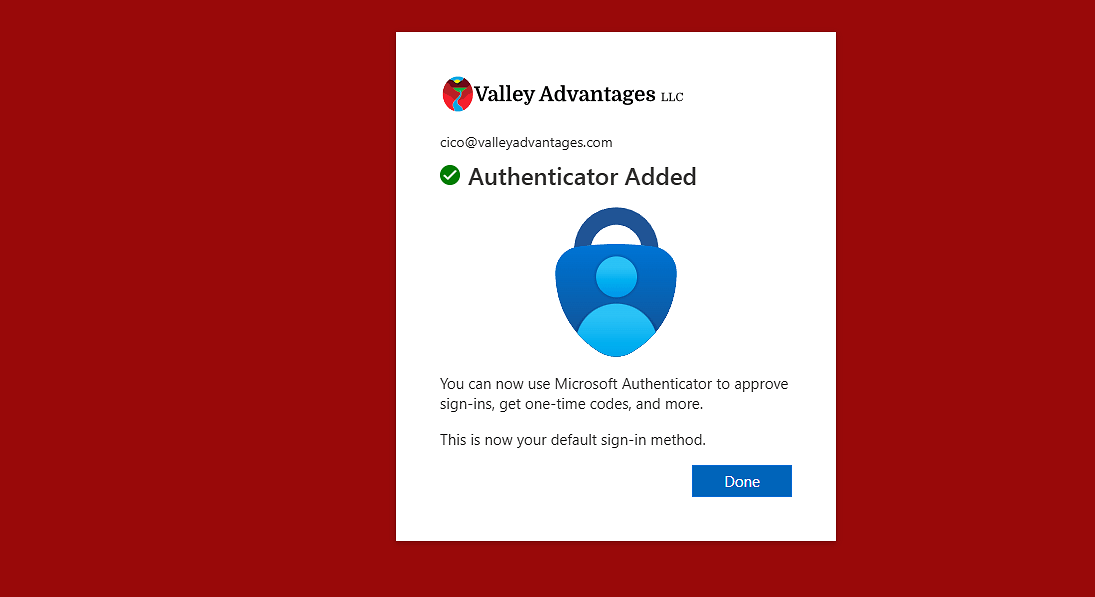
<div class="stepCard" id="bkmrk--35"></div>**18.**  <span class="stepTitleText">When you see this screen, you're good to go! </span>

![When you see this screen, you're good to go! ](https://kb.calicosystems.net/uploads/images/gallery/2026-02/embedded-image-wqanjodb.png)

<div class="stepCard" id="bkmrk--37"></div>**19.**  <span class="stepTitleText">Once the app has scanned the code, press Next </span>
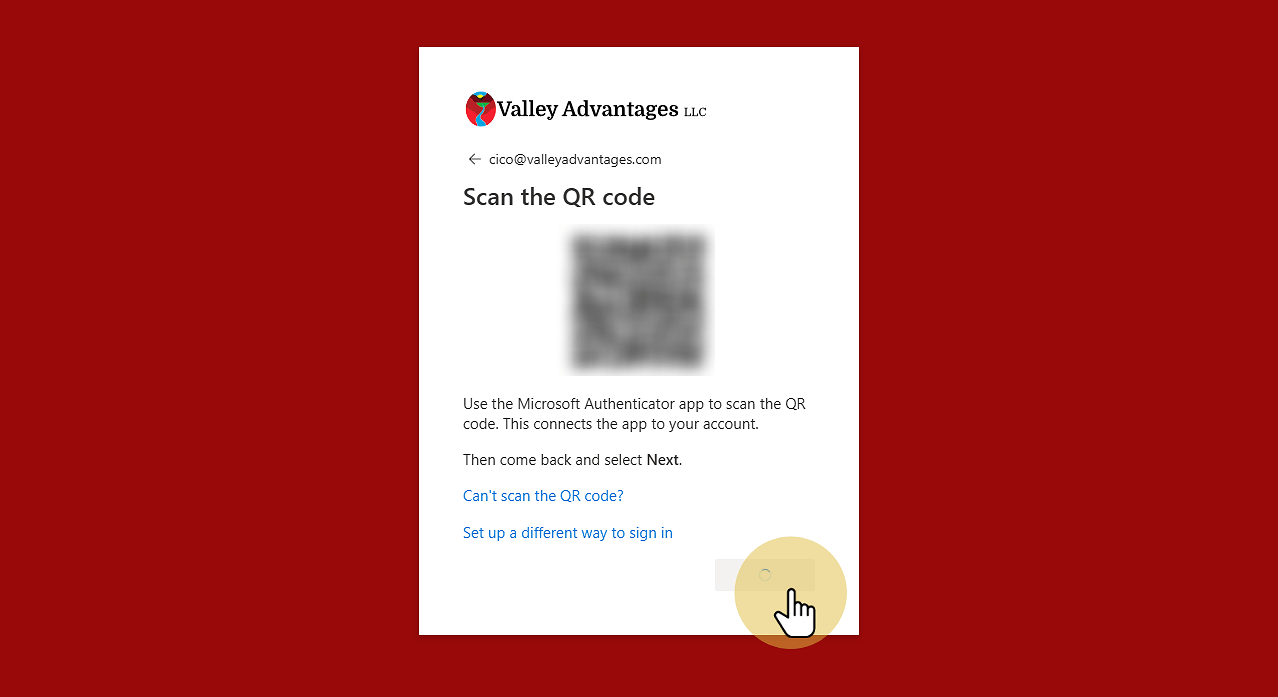
![Once the app has scanned the code, press Next ](https://kb.calicosystems.net/uploads/images/gallery/2026-02/embedded-image-jcinsmmg.png)

<div class="stepCard" id="bkmrk--39"></div>**20.**  <span class="stepTitleText">Enter the number shown on screen into the Authenticator app </span>

![Enter the number shown on screen into the Authenticator app ](https://kb.calicosystems.net/uploads/images/gallery/2026-02/embedded-image-bzs2rfoz.png)

<div class="stepCard" id="bkmrk--41"></div>**21.**  <span class="stepTitleText">Enter the number shown on screen and click yes </span>

![Enter the number shown on screen and click yes ](https://kb.calicosystems.net/uploads/images/gallery/2026-02/embedded-image-lchkh9ma.png)

<div class="stepCard" id="bkmrk--43"></div>**22.**  <span class="stepTitleText">When you see this screen, you're good to go!</span>

![When you see this screen, you're good to go!](https://kb.calicosystems.net/uploads/images/gallery/2026-02/embedded-image-d03qnfog.png)

<div class="stepCard" id="bkmrk--45"></div>**23.**  <span class="stepTitleText">Click "Done"</span>

![Click "Done"](https://kb.calicosystems.net/uploads/images/gallery/2026-02/embedded-image-f4xlt6ia.png)

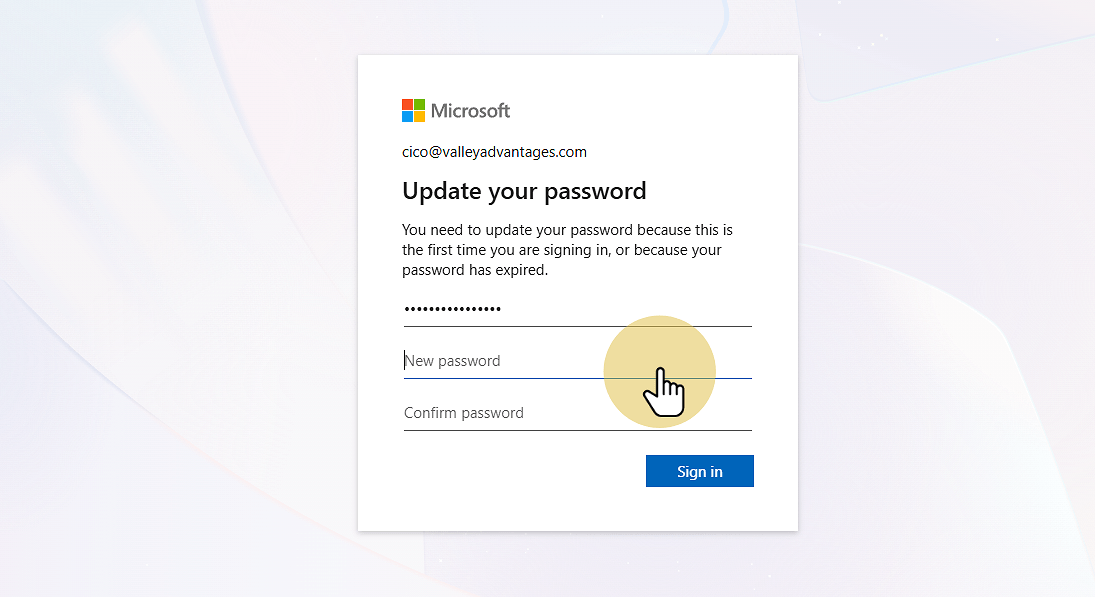
<div class="stepCard" id="bkmrk--47"></div>**24.**  <span class="stepTitleText">Enter your current password and a new secure password</span>

![Enter your current password and a new secure password](https://kb.calicosystems.net/uploads/images/gallery/2026-02/embedded-image-8i2zmlte.png)

<div class="stepCard" id="bkmrk--49"></div>**25.**  <span class="stepTitleText">Click "Sign in"</span>

![Click "Sign in"](https://kb.calicosystems.net/uploads/images/gallery/2026-02/embedded-image-yhiyfa2b.png)

<div class="stepCard" id="bkmrk--51"></div>**26.**  <span class="stepTitleText">Your inbox will load...</span>

![Your inbox will load...](https://kb.calicosystems.net/uploads/images/gallery/2026-02/embedded-image-mc14tbbk.png)

<div class="stepCard" id="bkmrk--53"></div>**27.**  <span class="stepTitleText">Welcome to your inbox! </span>

![Welcome to your inbox! ](https://kb.calicosystems.net/uploads/images/gallery/2026-02/embedded-image-kpnzdxhz.png)

<div class="stepCard" id="bkmrk--55"></div>**28.**  <span class="stepTitleText">Scan this QR code to download the Outlook app on your phone to access your email </span>

![Scan this QR code to download the Outlook app on your phone to access your email ](https://kb.calicosystems.net/uploads/images/gallery/2026-02/embedded-image-dfgfmr9w.png)

<div class="stepCard" id="bkmrk--57"></div>