
Edit On-Call Schedule in Elevate
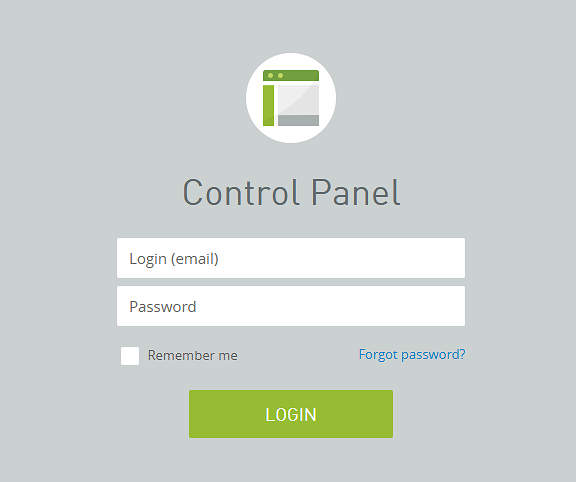
1. Log in to the Elevate admin panel
Go to: https://cp.serverdata.net/
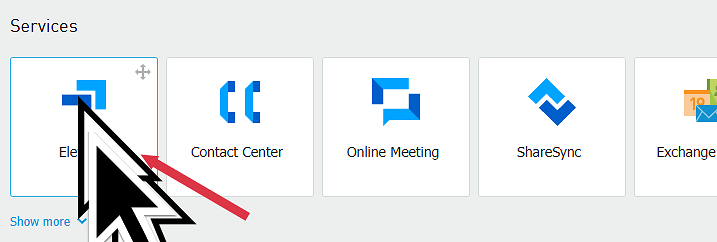
2. Click "Elevate"
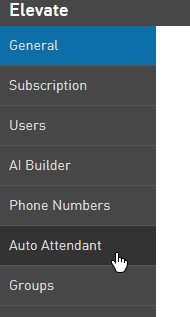
3. Click "Auto Attendant" on the left hand side
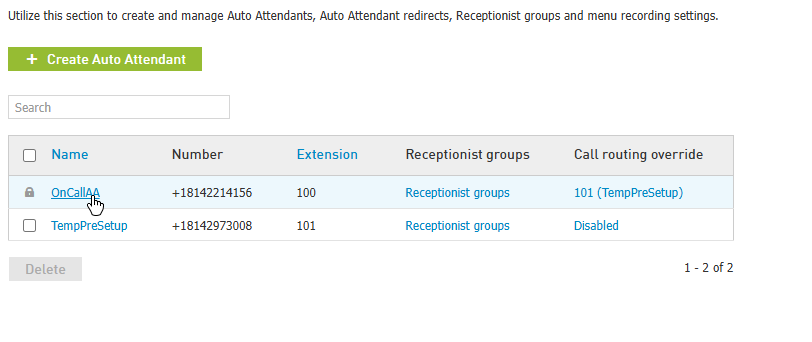
4. Click "OnCallAA"
IMPORTANT: Until the final switchover, please click "TempPreSetup"
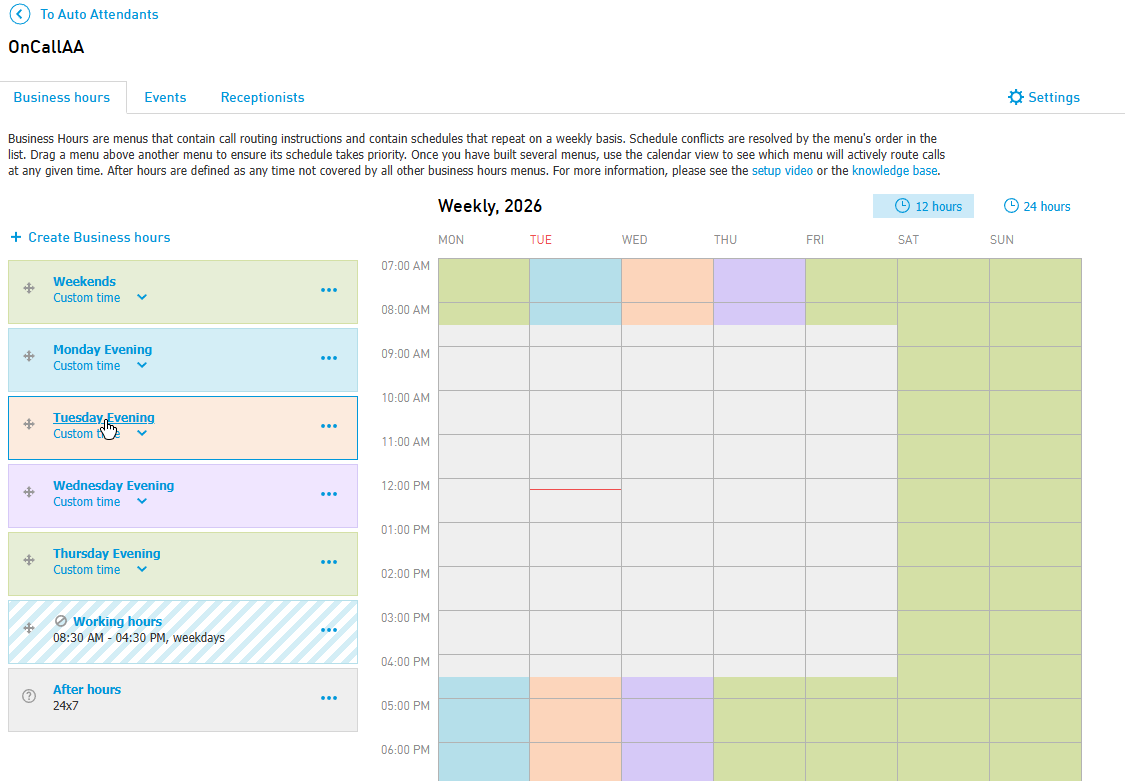
5. Click the time slot you want to edit
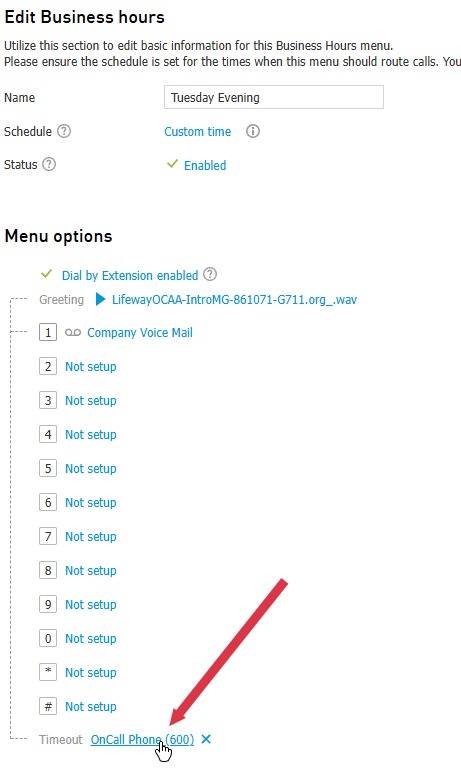
6. At the bottom of the page that appears, click the text next to "Timeout"
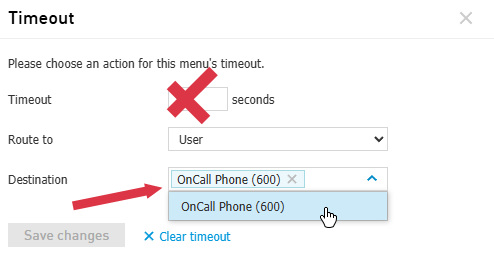
7. Click the down arrow next to "destination"
Choose the user that you want the calls to go to. DO NOT change the "Route to" or "Timeout" options
8. Click "Save changes" when you are finished
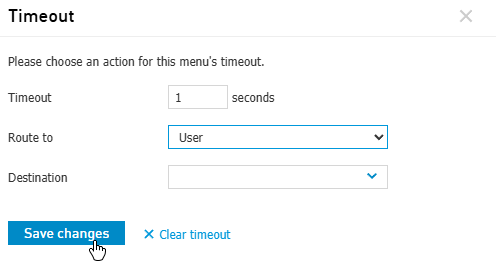
9. That's it! The schedule has been changed.
Follow these steps to verify who is set to receive calls.