
Access a shared mailbox via Outlook Web
1. Open the Outlook web client
Go to https://outlook.cloud.microsoft and log in with your account, do not try to log in as the shared mailbox.
2. Click the circle with your initals in the top right
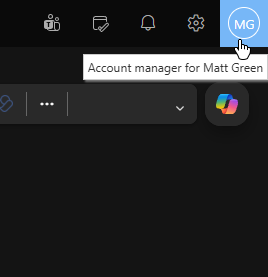
3. Click "Open another mailbox"
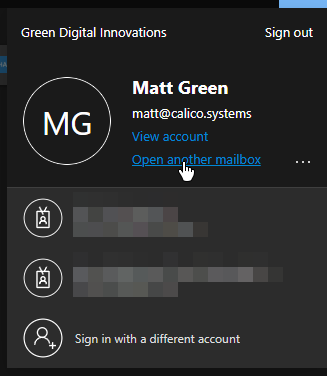
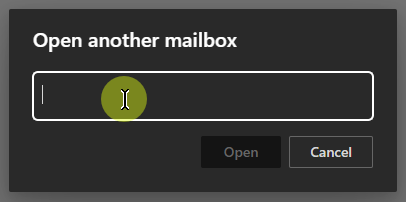
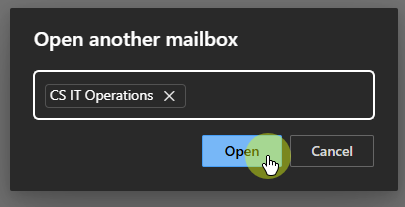
4. In the box that appears in the middle of the screen, click the text box and type in the email address of the mailbox you want to open.
5. As you type, Outlook will make suggestions. When you see the mailbox you want, you can click it to autocomplete.
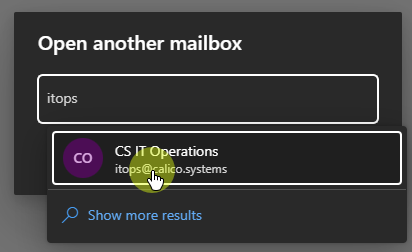
6. Click the "Open" button
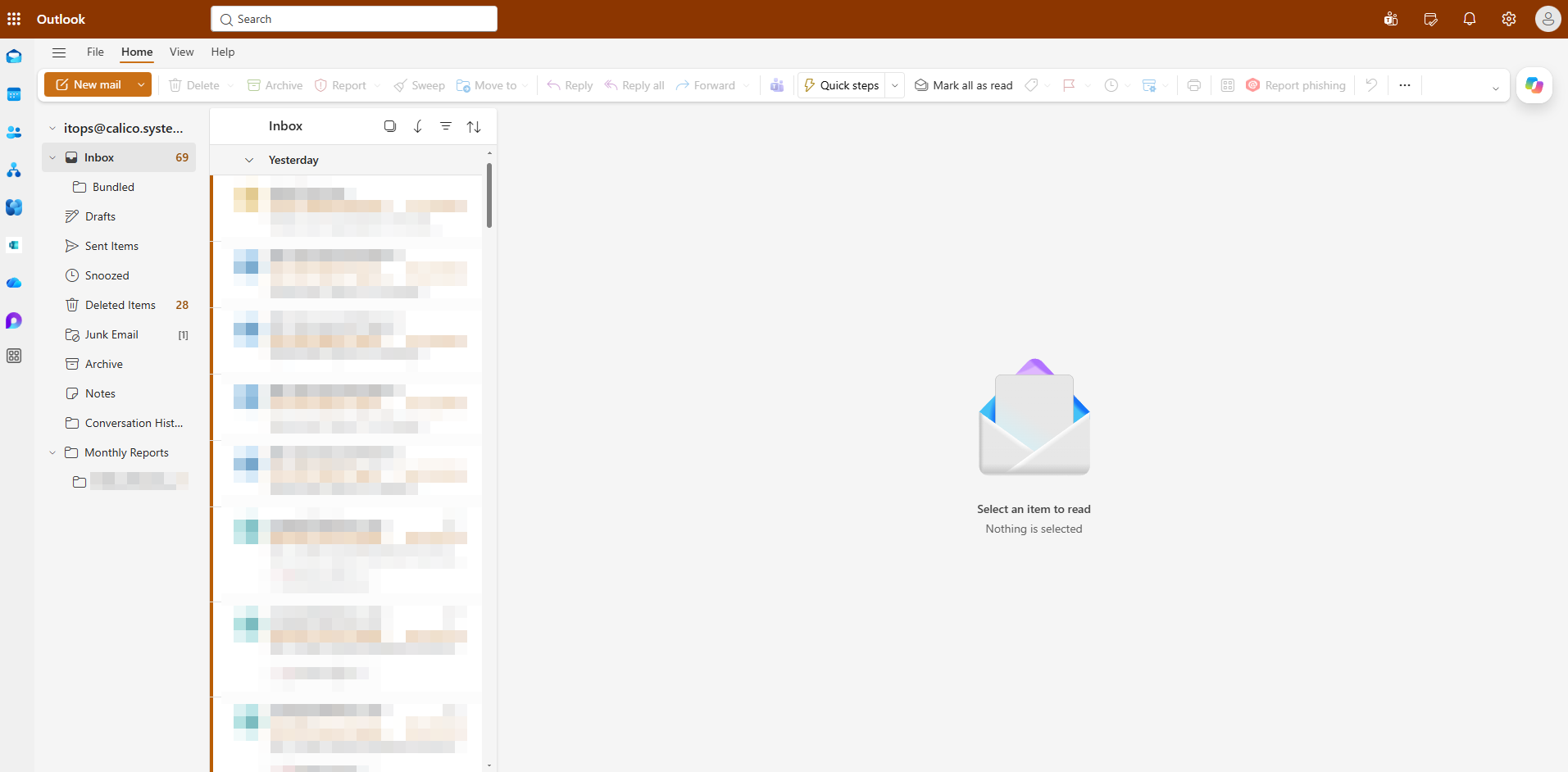
7. You will now see the mailbox as a normal Outlook mailbox, and can send and receive from the shared address.
IMPORTANT: when you see this screen you can bookmark the URL to access it quicker in the future.
It will be https://outlook.cloud.microsoft/mail/sharedaddress@example.com
No comments to display
No comments to display