# Accessing Outlook Shared Mailboxes

Learn how to access shared mailboxes inside of Microsoft 365.

# Access a shared mailbox via Outlook Web

**1.** <span class="stepTitleText">Open the Outlook web client</span>

Go to [https://outlook.cloud.microsoft](https://outlook.cloud.microsoft) and log in with your account, do not try to log in as the shared mailbox.

<div class="stepCard" id="bkmrk-"><div class="stepDescription quillClasses">  
</div>  
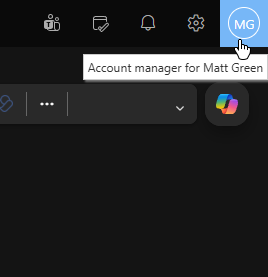
</div>**2.** <span class="stepTitleText">Click the circle with your initals in the top right</span>

![Click the circle with your initals in the top right](https://kb.calicosystems.net/uploads/images/gallery/2026-10/IAo44EtvayvzgCgj-embedded-image-balztzzt.png)

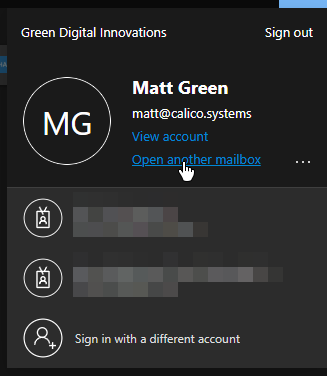
<div class="stepCard" id="bkmrk--2"></div>**3.** <span class="stepTitleText">Click "Open another mailbox"</span>

![Click &quot;Open another mailbox&quot;](https://kb.calicosystems.net/uploads/images/gallery/2026-10/QN7I5bIotry6bhRk-embedded-image-tjxpvvbe.png)

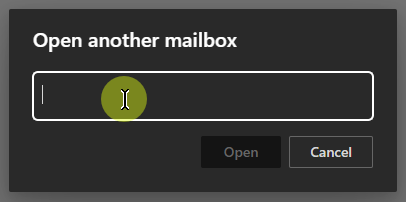
<div class="stepCard" id="bkmrk--4"></div>**4.** <span class="stepTitleText">In the box that appears in the middle of the screen, click the text box and type in the email address of the mailbox you want to open.</span>

![In the box that appears in the middle of the screen, click the text box and type in the email address of the mailbox you want to open.](https://kb.calicosystems.net/uploads/images/gallery/2026-10/vzCC9er968jusioZ-embedded-image-lzhdfh6k.png)

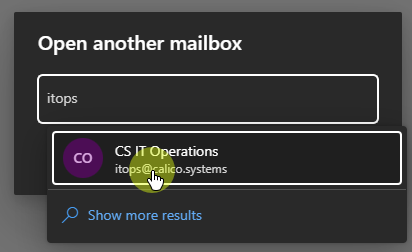
<div class="stepCard" id="bkmrk--6"></div>**5.** <span class="stepTitleText">As you type, Outlook will make suggestions. When you see the mailbox you want, you can click it to autocomplete.</span>

![As you type, Outlook will make suggestions. When you see the mailbox you want, you can click it to autocomplete.](https://kb.calicosystems.net/uploads/images/gallery/2026-10/FFU4psNMp82q7kQi-embedded-image-ujk3fdvm.png)

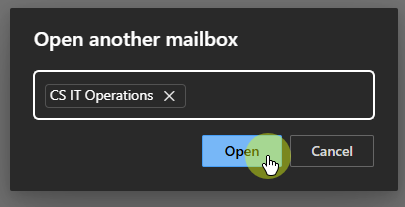
<div class="stepCard" id="bkmrk--8"></div>**6.** <span class="stepTitleText">Click the "Open" button</span>

![Click the &quot;Open&quot; button](https://kb.calicosystems.net/uploads/images/gallery/2026-10/U8NtNrX7GCVuipvx-embedded-image-xysyurqd.png)

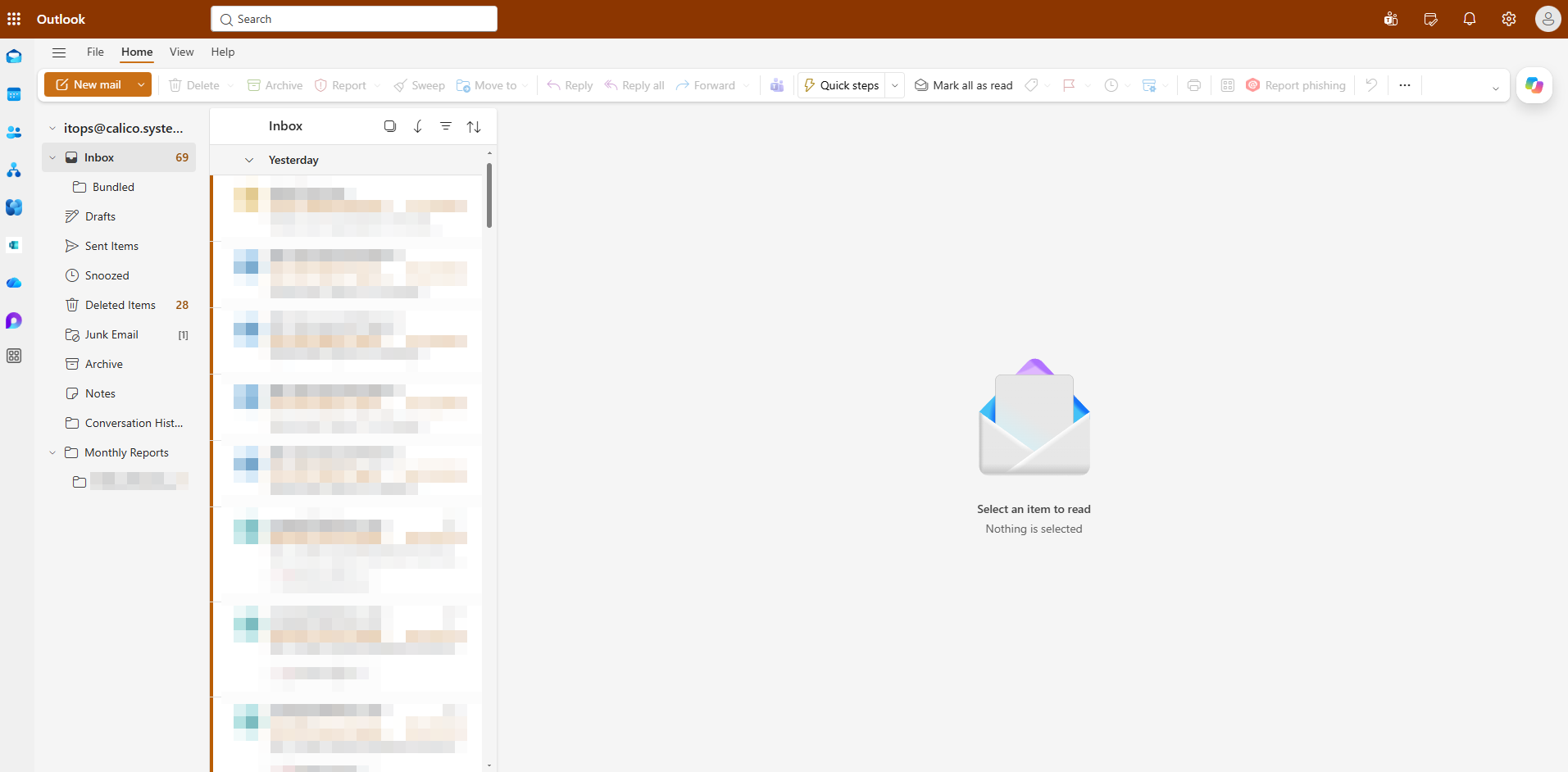
<div class="stepCard" id="bkmrk--10"></div>**7.** <span class="stepTitleText">You will now see the mailbox as a normal Outlook mailbox, and can send and receive from the shared address.</span>

**IMPORTANT: when you see this screen you can bookmark the URL to access it quicker in the future.**

**It will be https://outlook.cloud.microsoft/mail/sharedaddress@example.com**
<div class="stepCard" id="bkmrk--11"><div class="stepDescription quillClasses">  
</div>  
</div>![You will now see the mailbox as a normal Outlook mailbox, and can send and receive from the shared address.](https://kb.calicosystems.net/uploads/images/gallery/2026-10/PO7IfaKlqQZzW53L-embedded-image-4jnpsmjg.png)

<div class="stepCard" id="bkmrk--13"></div>

# Access a shared mailbox from the Outlook mobile app

(screenshots coming soon)

1. [Download and install the Outlook mobile app.](https://8go.co/dAmSn)
2. Sign in with your company Microsoft.
3. **Tap the circle** in the top left corner of the screen beside Inbox.
4. Scroll down to the bottom and click the **gear icon.**
5. Tap **Accounts,** and **Add Account.**
6. Tap **Shared Mailbox.** 
    - You may need to select your company account.
7. **Enter** the Shared mailbox address.
8. **Tap Add Shared Mailbox.**

The mailbox will show up in your list of accounts on the left side of the screen. Messages sent from here will appear as coming from the shared mailbox.

\* We do not support adding a shared mailbox to any other email client for a mobile device.